
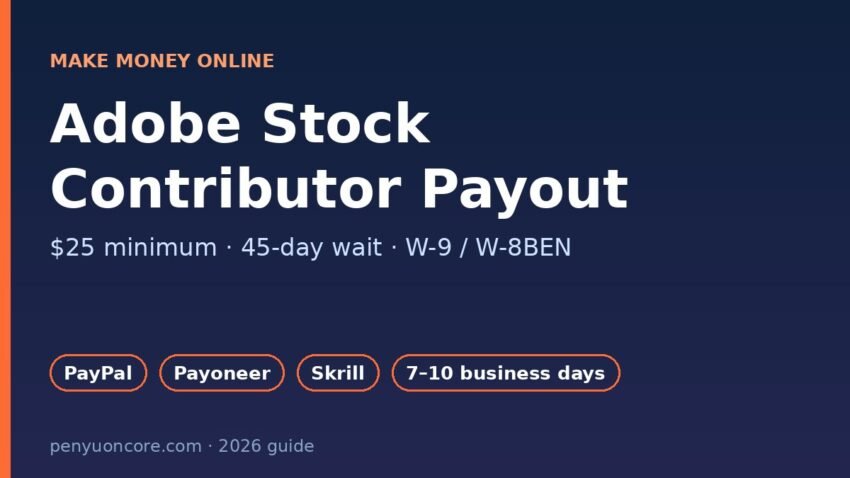
If you sell photos, vectors, or video on Adobe Stock, the Adobe Stock contributor payout rules decide when you can actually get your money. In short, you can request a payout once you have at least US $25 in royalties, it has been at least 45 days since your first sale, and you have linked a PayPal, Payoneer, or Skrill account. Adobe says funds usually arrive within 7 to 10 business days after you submit the request.
This guide covers every condition, the exact steps in the Contributor Portal, how tax forms change what you receive (W-9 for US contributors, W-8BEN for the UK and other non-US contributors), and what to do if a payout bounces. Everything here comes from Adobe’s own help pages, checked in November 2026.
Adobe Stock Payout Requirements at a Glance
Adobe’s payment requirements page and its request a payment guide list five conditions. All of them must be met before the Payout option works.
| Requirement | What Adobe requires | Notes |
|---|---|---|
| Minimum balance | US $25 in royalties | The Payout option is disabled below $25 |
| Waiting period | 45 days since your first Adobe Stock sale | Counted from your first sale, not your sign-up date |
| Payment account | Valid PayPal, Payoneer, or Skrill account | Payoneer is only for contributors outside the US |
| Verification | Verified email address and phone number | Done in your Contributor Account settings |
| Tax form | Valid tax form on file, or accept automatic withholding | Without a form, Adobe withholds the maximum rate of 30% |
After your first payout, you can request another one each time your balance gets back to $25. Adobe says your balance resets to zero after each request.
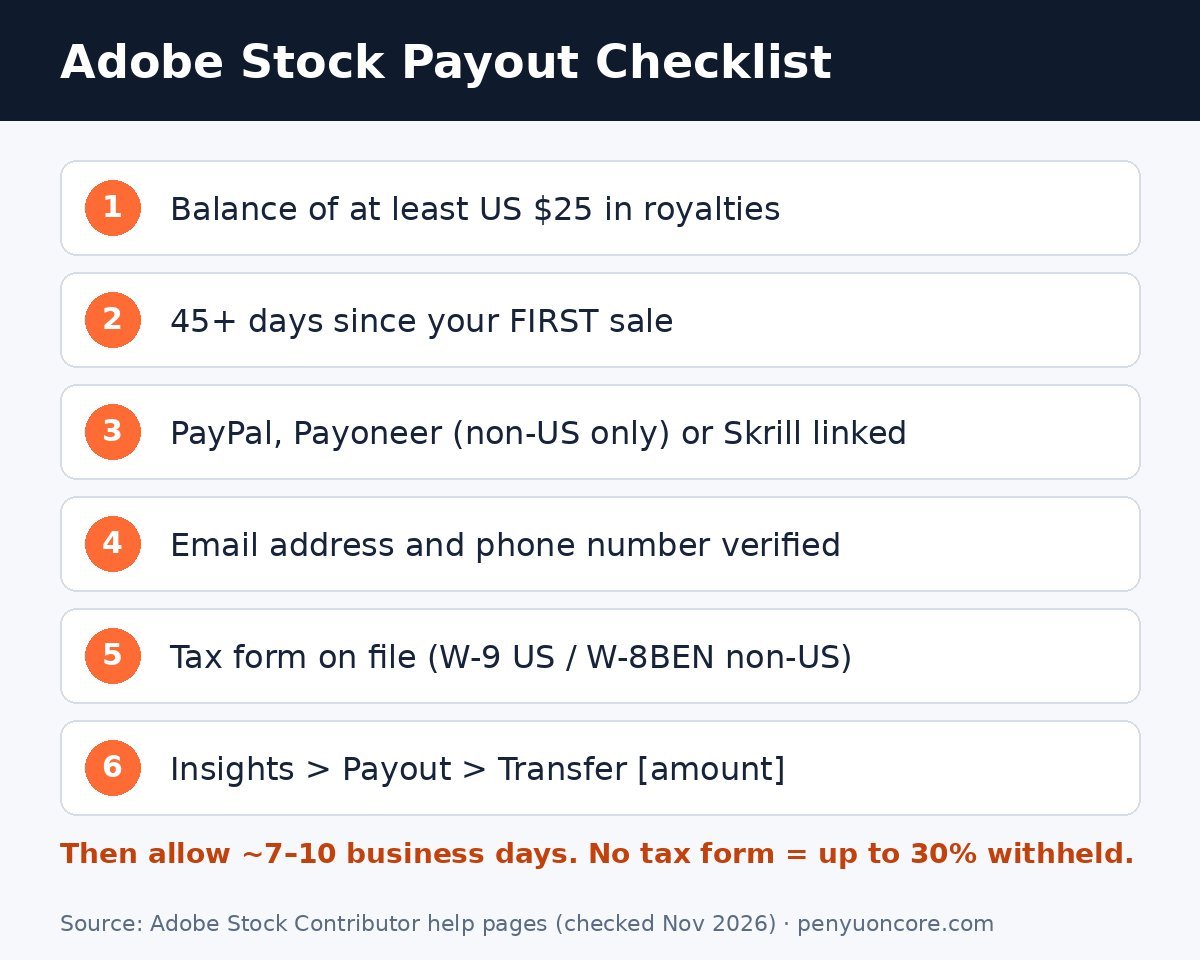
How to Request an Adobe Stock Payout (Step by Step)
Adobe Stock does not pay you automatically on a fixed date. You have to ask for each payout yourself. According to Adobe’s payout instructions, the steps are:
- Sign in to the Adobe Stock Contributor Portal with your Adobe ID.
- Open the Insights page and select Payout.
- Check the payout details, including your linked payment provider and account. If nothing shows up, select Go to Payout information and add a provider in your Contributor Account settings.
- Select Transfer [amount] to submit the request.
- Track the request’s status on the Insights page.
Adobe says it starts processing as soon as it receives the request, and funds usually reach your payment account within 7 to 10 business days. Business days don’t include weekends or holidays, so a request sent on a Friday can take noticeably longer by the calendar.
Is there a fixed payout schedule?
No. This is the main difference from sites like Shutterstock, whose help center describes a monthly cycle where eligible payments usually go out between the 7th and 15th. With Adobe Stock, you choose when to withdraw. That’s handy if you want your money quickly, but it’s easy to forget to cash out.
Choosing PayPal, Payoneer, or Skrill
You can only pick one payment provider at a time. Adobe lists these options:
- PayPal: available worldwide. Adobe notes that contributors in Japan need a premium PayPal account to receive funds.
- Payoneer: only for contributors outside the United States.
- Skrill: available in most countries.
For US-based contributors, that leaves PayPal or Skrill. UK contributors can use any of the three. Adobe works out royalties in credits, where 1 credit equals 1 USD, and you can’t change this. Any conversion to pounds or another currency happens on your provider’s side, so check your provider’s fees and exchange rates before you choose.
The payment providers FAQ also says that changes to your payment details apply to payout requests made after the update.
Tax Forms: What US and UK Contributors Need
The tax form is the requirement people most often miss, and it directly changes how much money you get.
US contributors: Form W-9
Adobe’s tax FAQ for US contributors says US tax residents usually submit Form W-9 so Adobe doesn’t withhold tax from their Adobe Stock income. A valid W-9 needs a US SSN, EIN, or ITIN. Some details matter at tax time:
- Adobe issues a Form 1099 to individuals who earn more than $10. Corporations don’t get one.
- Royalties are reported in the year you earn them, not when you withdraw them. Adobe explains that earnings are reported whether or not you requested a payout, and you only pay tax on this income once.
- You can download your 1099 through Adobe’s electronic request form. If you use the electronic form, Adobe stops mailing you paper copies.
In practice, money still sitting in your Adobe Stock balance on December 31 can still count as income for that year. If you also sell on other platforms, our guide to Gumroad and Form 1099-K explains how reporting from different platforms can stack up.
UK and other non-US contributors: Form W-8BEN
Adobe’s tax FAQ for non-US contributors says individuals should submit Form W-8BEN. If your country has a tax treaty with the US, the form lets you claim reduced or zero US withholding. If there’s no treaty, 30% withholding applies. Withholding rates for video can be different from rates for other file types, and Adobe links to a country-by-country withholding table on that page. Check your rate there rather than relying on a figure from a forum.
Two more points from the same page:
- W-8 forms expire. A W-8 expires on the last day of the third year after you sign it. Adobe’s example is a form signed on August 1, 2021, which expires on December 31, 2024. Once it expires, the maximum withholding applies again.
- Entities use different forms. Non-US LLCs, partnerships, and corporations may need W-8BEN-E or another W-8 form, and Adobe suggests asking a tax advisor.
Adobe says forms are completed and e-signed online in the Tax Center in your Contributor Account. Its general tax FAQ warns that if you sign more than 2 hours after opening the form, it can’t be validated and stays as a draft. In that case you need to wait at least 2 hours and start a new form.
What If a Payout Fails or Never Arrives?
Adobe says it monitors every payout. If PayPal, Payoneer, or Skrill rejects the transfer, Adobe returns the money to your Contributor balance. Common fixes:
- Payout button greyed out: check the $25 balance, the 45-day wait, your linked provider, your email and phone verification, and your tax form.
- Money bounced back to your balance: check that your provider account details are correct and fully verified, then contact the provider to find out why it was rejected before you request again.
- Want to cancel a request: contact Contributor Relations. Adobe says a payout can’t be cancelled once the provider has received and accepted it.
- Still stuck: use the Contributor Relations support form. Include the steps you’ve already tried.
How Much Do You Earn Per Sale?
Knowing the royalty rates helps you estimate how long it will take to reach $25. Adobe’s royalty rates page (updated October 2026) lists 33% for photos, vectors, and illustrations and 35% for video, applied to the net US price including discounts. Adobe’s own example is a $29.99 plan with 10 photo licenses, which works out to about $0.99 per licensed photo. For large subscriptions, minimum royalties start at $0.33 per standard asset.
For a new portfolio earning mostly subscription downloads at under a dollar each, reaching the first $25 can take a while. Plan around that and don’t count on fast cash. If you’re comparing creator platforms, see how other sites handle payouts in our Redbubble payout schedule and Society6 payout schedule guides.
FAQ
What is the minimum Adobe Stock payout?
US $25 in royalties. The Payout option stays disabled until your available balance reaches that amount.
Why can’t I withdraw even though I have more than $25?
The most likely reason is the 45-day wait after your first sale. A missing payment provider, unverified email or phone, or missing tax setup can also block the button.
Does Adobe Stock pay automatically every month?
No. You request each payout yourself from the Insights page in the Contributor Portal.
Can US contributors use Payoneer?
No. Adobe says Payoneer is only for contributors outside the United States. US contributors can use PayPal or Skrill.
Do I owe tax if I never withdraw?
For US contributors, Adobe says royalties are reported when they’re earned, not when they’re withdrawn, so unwithdrawn earnings can still be taxable for that year.
Disclaimer: This article is general information, not tax or financial advice. Adobe’s payout rules, provider options, and withholding rates can change. Check the linked Adobe help pages and talk to a qualified tax professional (or HMRC guidance in the UK) about your own situation.