
Short answer: To add Core to MetaMask, create a custom network with RPC URL https://rpc.coredao.org/, Chain ID 1116 (shown as 0x45c in hex), currency symbol CORE, and block explorer https://scan.coredao.org. You can also add it in one click from Chainlist or the “Add Core Network” button at the bottom of Core Scan. You then need a small amount of CORE in the same address to pay gas.
This step-by-step guide covers the verified network details, three ways to add Core mainnet, how to spot a fake RPC, where CORE for gas comes from, and fixes for the most common errors. Every network value below was checked against Core’s official documentation in November 2026. New to the chain? Start with our explainer on what Core DAO is and how Satoshi Plus works.
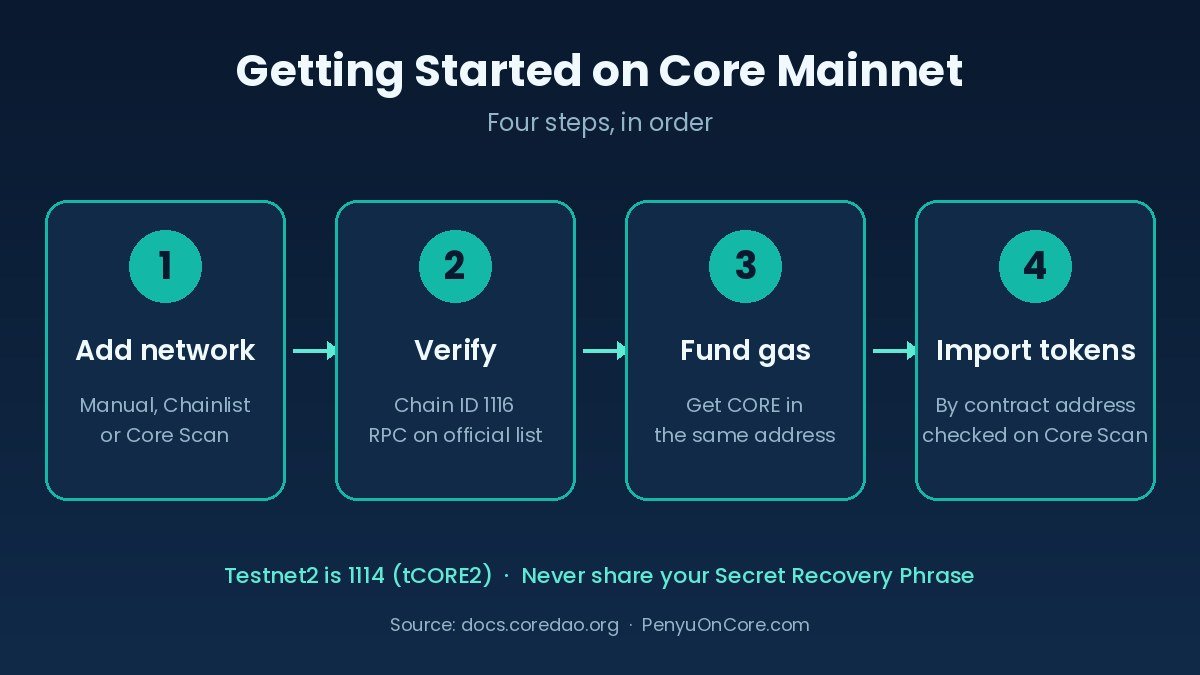
Setup flow: add the network, verify the chain ID, fund CORE for gas, then import tokens by contract address.
Core Mainnet Network Details for MetaMask
| Field in MetaMask | Value for Core mainnet | Official source |
|---|---|---|
| Network name | Core Blockchain Mainnet (a label only you see) | Core docs: wallet config |
| Default RPC URL | https://rpc.coredao.org/ |
Core docs: network config |
| Chain ID | 1116 (hex 0x45c) |
Core docs: network config |
| Currency symbol | CORE |
Core docs: network config |
| Block explorer URL | https://scan.coredao.org |
Core docs: block explorer |
Backup RPC endpoints listed on Core’s official RPC page: https://rpcar.coredao.org (archive node, from Core) and third-party endpoints such as Ankr (https://rpc.ankr.com/core), 1RPC (https://1rpc.io/core) and dRPC (https://core.drpc.org). Core’s own MetaMask page uses the Ankr URL, while its network configuration page uses rpc.coredao.org; both point to chain ID 1116. Chainlist shows the same chain ID, the CORE symbol and Core Scan as the explorer.
Do not mix up testnet and mainnet. Core Testnet2 uses chain ID 1114 and the symbol tCORE2. The older testnet (chain ID 1115) is deprecated. Testnet tokens have no value.
How to Add Core to MetaMask: 3 Methods
Method 1: Add the network manually (most control)
MetaMask’s menus change between versions. The labels below come from the MetaMask Help Center as of November 2026.
Browser extension:
- Open the Tokens tab and click the All networks dropdown.
- Click Manage networks.
- Click Add a custom network at the bottom of the screen.
- Enter the five values from the table above, then click Save.
MetaMask Mobile:
- Tap Tokens on the home screen.
- Tap the network dropdown at the top (it shows Popular networks by default).
- Open the Custom tab and tap Add a custom network.
- Enter the same details and tap Save.
A network added in the extension does not sync to the mobile app (or the other way around), so add it on each device. You will also need to add it again if you reinstall MetaMask.
Method 2: One click through Chainlist
Core’s docs describe this route. Go to chainlist.org, connect MetaMask and search for “Core Blockchain”. Pick Core Blockchain Mainnet, check that it shows Chain ID 1116 and currency CORE, then approve the request in MetaMask. Watch out for look-alike entries. In the search results, the chain ID is the detail that matters.
Method 3: From the official Core Scan explorer
According to Core’s documentation, you can scroll to the bottom of scan.coredao.org, click Add Core Network and approve the request in MetaMask. Core then appears in your network selector.
How to Verify You Added the Right Network (and Avoid Fake RPCs)
MetaMask’s own verification guide says it does not verify custom networks. A website asking you to add a network can supply any name or RPC URL it likes, so do these checks before you approve:
- Click “See details” on any add-network popup. Compare the network URL, chain ID and currency symbol with the table above.
- Chain ID must be 1116 (0x45c). If MetaMask shows
0x45c, that is simply 1116 written in hexadecimal. - The RPC URL should appear on Core’s official RPC list. Don’t use an endpoint from a Telegram message, a DM or a “support agent”. A malicious RPC can show false balances or censor your transactions.
- Check the explorer domain. It should be
scan.coredao.org, not a look-alike spelling. - Adding a network never needs your Secret Recovery Phrase. Anyone who asks for it is a scammer.
As a final check, copy your address from MetaMask and search for it on Core Scan. The CORE balance there should match what MetaMask shows. For broader wallet hygiene, see our crypto security guide.
How to Get CORE for Gas
According to Core’s token overview, CORE is the gas token for all Core network transactions and smart contract operations. Without some CORE in your address, you cannot send tokens, approve contracts or use dApps on Core. Core is EVM-compatible, so your existing MetaMask address (starting with 0x) also works on Core.
Option 1: Withdraw from a centralized exchange
Several exchanges announced CORE listings, including OKX, HTX, MEXC and LBank. Availability depends on your country, so check your own exchange. This applies to users in Indonesia and the rest of Southeast Asia too. Before you withdraw:
- Choose the Core mainnet network for the withdrawal. If you pick the wrong network, your funds may never arrive.
- Paste your MetaMask address and confirm the first and last characters.
- Send a small test amount first, then the rest.
Option 2: The official Core Bridge
The Core Bridge is powered by LayerZero. Core’s bridge resources page lists bridge contracts for Ethereum, BNB Smart Chain, Polygon, Optimism, Avalanche, Arbitrum and Base. It also lists bridged tokens on Core such as USDT, USDC, WBTC and WETH. Bridging moves those tokens, but they do not pay gas on Core. You still need some native CORE to transact once your funds arrive. The simplest order is to get a little CORE first, then bridge.
Common Errors and How to Fix Them
Wrong chain ID or the RPC URL will not save
This usually means a typo in the chain ID or an RPC URL that points to another network. Enter 1116, not 1114 (Testnet2) or 1115 (deprecated testnet), and use an RPC from Core’s official list. If one RPC is down, MetaMask lets you add a backup RPC URL to the same network and switch to it.
“Insufficient funds for gas” or a greyed-out Confirm button
MetaMask’s help article explains that this means you lack the network’s native token, which is CORE on Core. Holding USDT or other tokens on Core is not enough. Send a little CORE to the same address, make sure MetaMask is set to the Core network, and leave a small buffer for follow-up approvals.
My tokens are not showing
First, confirm the balance on Core Scan. If the tokens are there, MetaMask just isn’t displaying them. Per MetaMask’s token guide, click the three dots in the token list and choose Manage tokens. Search for the token, or scroll down to Add custom token, paste the contract address, then click Next and Import. On mobile, tap + and use the Custom token tab.
You never need to import CORE itself. CORE is the native coin and shows automatically once you are on the network.
Where to find a real contract address
Only copy contract addresses from official sources. Core’s bridge resources page lists, for example:
- USDT (Core Bridge):
0x900101d06a7426441ae63e9ab3b9b0f63be145f1 - USDC (Core Bridge):
0xa4151b2b3e269645181dccf2d426ce75fcbdeca9 - WCORE (wrapped CORE):
0x40375c92d9faf44d2f9db9bd9ba41a3317a2404f
Before importing, open the address on Core Scan. Fake tokens often copy real names and symbols, and unknown airdropped tokens can be phishing bait. Market risk applies too: read our lessons on why Core tokens fell before you put money into any ecosystem token.
FAQ
What is the Core chain ID in MetaMask?
1116, which MetaMask may display as 0x45c. Testnet2 is 1114.
What is the official Core RPC URL?
Core’s network configuration page lists https://rpc.coredao.org/. Backups are on the official RPC list.
Is it safe to add Core through Chainlist?
Core’s documentation lists Chainlist as one of the supported methods. Still, check that the entry shows chain ID 1116 and the CORE symbol before you approve.
Why does MetaMask show 0 CORE after I withdrew from an exchange?
Check that you are on the Core network and that the exchange sent on Core mainnet. Then search the transaction or your address on Core Scan.
Does adding Core to MetaMask cost anything?
No. Adding a network is free and is not an on-chain transaction. Gas is only paid in CORE when you send a transaction.
Bottom Line
To add Core to MetaMask, use chain ID 1116, symbol CORE, an RPC from Core’s official list (https://rpc.coredao.org/) and scan.coredao.org as the explorer. After that, verify the network, fund a little CORE for gas, and import tokens only by contract addresses you have checked.
Related reading: What Is Core DAO? · Crypto Security Guide · Why Core Tokens Fell
Disclaimer: This guide is educational only and is not financial or investment advice. Crypto assets are volatile and can lose value. Wallet interfaces, RPC endpoints and exchange listings change, so always confirm details on Core’s official docs before sending funds.
Sources
- Core DAO Docs — Network Configuration
- Core DAO Docs — Wallet Configuration (Add Core Network)
- Core DAO Docs — RPC Endpoints
- Core DAO Docs — Core Bridge Resources
- Core DAO Docs — CORE Token Overview
- Core Academy — How to Add Core Blockchain to Popular Web3 Wallets
- Core Scan explorer
- Chainlist — Core Blockchain Mainnet (1116)
- MetaMask — How to add a network
- MetaMask — Verify custom network information
- MetaMask — Fix “insufficient funds”
- MetaMask — How to display tokens