
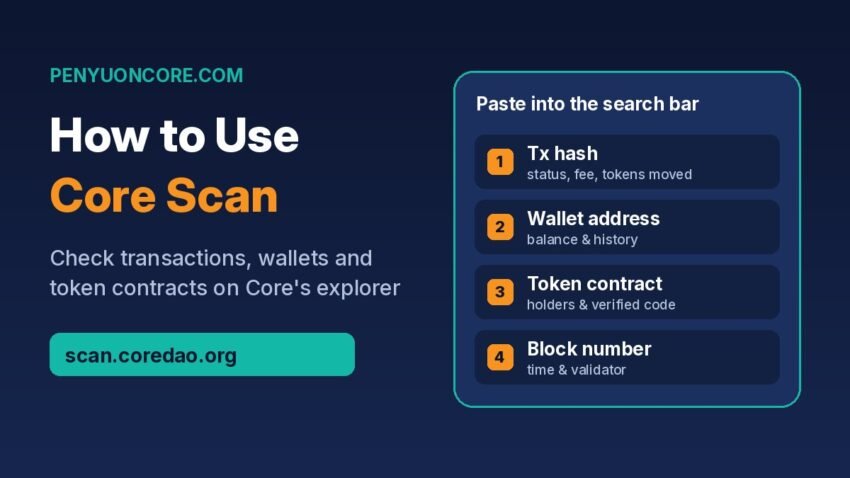
Quick answer: To use Core Scan, open scan.coredao.org and paste a transaction hash, wallet address, block number or token contract address into the search bar. A transaction page shows its status, block, sender, receiver, value and fee. An address page lists the wallet’s CORE balance, transactions and token transfers. For a token or contract, open the Contract tab and check whether the source code is verified before you interact with it.
Core Scan is the official block explorer for the Core blockchain mainnet. Core DAO’s network configuration docs list it as the explorer for chain ID 1116. If you’ve used Etherscan, you’ll know your way around: the layout, the tabs and most of the labels work the same way. This guide shows what to look at, step by step, and where people usually go wrong.
What Core Scan is (and what it isn’t)
A block explorer is a public, read-only window into a blockchain. Core DAO’s explorer documentation describes Core Scan as an interface for browsing blocks, transactions, wallet balances and CORE token information. Core DAO also runs a separate explorer for its test network.
- Mainnet (real CORE):
https://scan.coredao.org - Testnet2 (test tokens, chain ID 1114):
https://scan.test2.btcs.network
Some things to keep in mind:
- It’s free and needs no login. Core’s own Core Scan guide confirms all the data is public. An optional account only adds extras such as private notes and API keys.
- It can’t move your funds. Searching an address never asks for your seed phrase. If a “Core Scan” page asks you to connect a wallet just to look up a transaction, or asks for a recovery phrase, close it. Type the URL yourself rather than clicking links from DMs.
- It only shows Core. A hash from Ethereum, BNB Chain or Bitcoin won’t be found on Core Scan. You’ll get a “not found” result even though the transaction is real.
If Core isn’t in your wallet yet, start with our guide on how to add Core to MetaMask. Setting it up with https://scan.coredao.org as the block explorer URL makes MetaMask’s “View on block explorer” link open Core Scan directly.
How to check a transaction on Core Scan
- Copy the transaction hash. In MetaMask, open the Activity tab, click the transaction and click the copy icon next to Transaction ID. MetaMask’s help article notes that explorers call this the transaction hash. It’s a long string starting with
0x. - Paste it into the search bar on scan.coredao.org. The search box accepts an address, transaction hash, block, token or domain name.
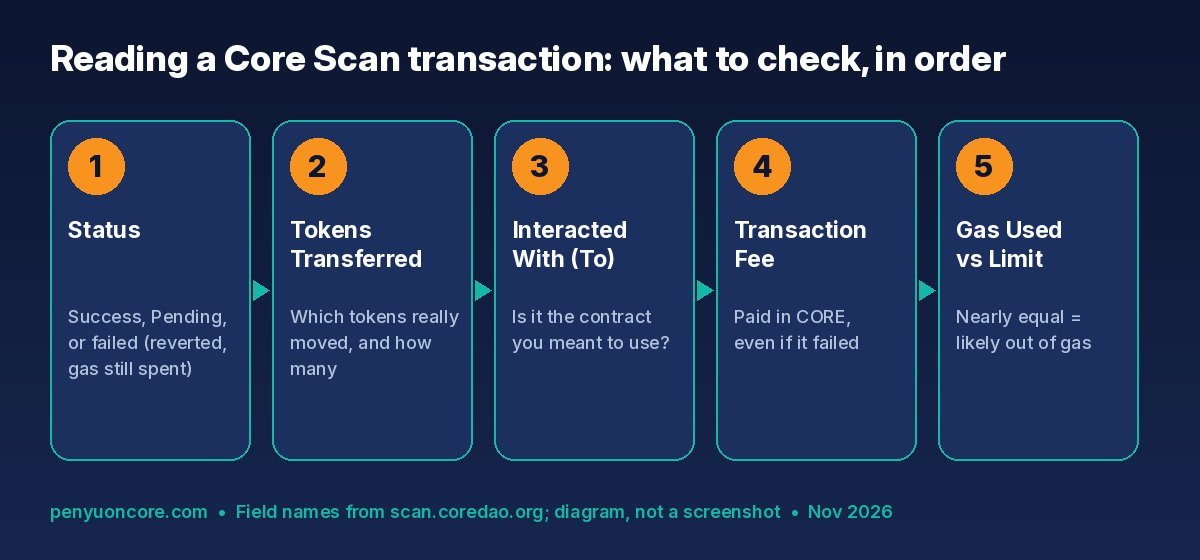
- Read the Status line first. Success means the transaction is done. Pending means the network has it but hasn’t put it in a block yet. A failed status means the transaction was included in a block but reverted. Your tokens didn’t move, but the gas fee was still spent.
- Check the details. The page lists the Block, TimeStamp, From, To (shown as “Interacted With (To)” when you called a contract), Value, Transaction Fee, Gas Price, Gas Limit and Gas Used, and Nonce.
- Look for “Tokens Transferred”. For a swap or token send, this line shows which tokens actually moved and how many. It’s more reliable than the Value field, which only shows native CORE.
If the hash isn’t found
“Not found” usually means one of three things. You’re on the wrong explorer (testnet vs mainnet, or another chain). You copied only part of the hash. Or the transaction never left your wallet. In that last case, our guide to pending and failed Core transactions in MetaMask walks through Speed up, Cancel and when (rarely) to clear activity data.
Reading a failed transaction
When a contract call fails, the reason often appears next to the status. Common ones include a slippage limit being hit, an expired deadline or a missing token approval. Compare Gas Used with the Gas Limit too. If they’re almost equal, the transaction probably ran out of gas. Otherwise, more gas won’t help, and you need to fix the underlying cause first. Our explainer on the “execution reverted” error covers the usual reasons and fixes.
How to check a wallet address
Paste any Core address into the search bar to open its address page. You’ll see the CORE balance, its token holdings and tabs that split activity by type:
- Transactions: everything the address sent or that called it directly.
- Internal Txns: CORE moved by smart contracts, such as a DEX paying you out or a contract sending rewards. If you got CORE but don’t see a normal transaction, check here.
- Token Transfers (ERC-20): movements of tokens like USDT, USDC, WBTC or stCORE.
- NFT Transfers: ERC-721 and ERC-1155 items, where present.
Remember that every address is public. Anyone who knows your address can see this history. That’s normal for public blockchains, but it’s a good reason not to post your main wallet address on social media.
How to check a token or smart contract before you use it
This is where Core Scan earns its keep. Scam tokens often copy the name and logo of a real token. The contract address is the only thing that can’t be faked.
- Get the address from an official source. For bridged assets, Core DAO’s bridge resources page lists the official contract addresses on Core for WCORE, USDT, USDC, WBTC, WETH, stCORE and others. Don’t take an address from a random reply or chat.
- Search the address on Core Scan. On a token page, check the name, symbol and decimals. The Holders tab shows how the supply is spread. If one or two wallets hold almost everything, treat that as a red flag. Transfers shows recent activity.
- Open the Contract tab. A verified contract shows “Contract Source Code Verified” and its readable code, plus Read Contract and Write Contract tabs. Upgradeable (proxy) contracts also show Read as Proxy and Write as Proxy, which means the logic behind the address can be changed.
- Treat unverified contracts with caution. If Core Scan only shows bytecode and a “Verify and Publish” prompt, nobody can easily read what the contract does. Core DAO’s contract verification docs call verification best practice for transparency. Verified code isn’t proof of safety, though. A verified contract can still be malicious or buggy.
After you’ve approved a token for a dApp, it’s worth checking those permissions from time to time. Our guide on how to revoke token approvals explains how.
What each search type shows you
| What you paste | What Core Scan shows | Use it to |
|---|---|---|
| Transaction hash (0x… 66 characters) | Status, block, from/to, value, tokens transferred, fee, nonce | Confirm a send, swap or claim went through |
| Wallet address (0x… 42 characters) | CORE balance, token holdings, transactions, internal txns, token transfers | Find missing deposits and review your history |
| Token contract address | Token info, holders, transfers, contract code | Check you have the real token, not a copy |
| Block number | Time, validator, transactions in that block | Confirm when something was recorded |
Other useful Core Scan tools
- Validators: Core’s guide says Core Scan shows validator stats such as hybrid score, commission and total staked CORE/BTC. These are useful before you stake CORE. Staking and unstaking themselves happen on the staking website, not on Core Scan.
- BTC Staking Transaction Decoder: if you’ve staked bitcoin, Core DAO’s decoder documentation explains how this tool on Core Scan reads your Bitcoin transaction and reports states like Pending, Confirming, Staked, Expired or Redeemed.
- Charts, Unit Converter and Input Data Decoder: network charts (transactions, gas price, active addresses), a converter between wei, gwei and CORE, and a tool for reading raw transaction input.
Tracking a bridge transfer
Core’s official bridge runs on LayerZero. A bridge transfer has two parts: a transaction on the source chain and a delivery on Core. Core’s guide suggests checking LayerZero Scan if bridged funds don’t show up right away. Then confirm the arrival in the Token Transfers tab of your address on Core Scan.
FAQ
Is Core Scan the official Core block explorer?
Yes. Core DAO’s documentation lists scan.coredao.org as the mainnet block explorer and scan.test2.btcs.network as the Testnet2 explorer.
Do I need to connect my wallet to use Core Scan?
No. Looking up transactions, addresses and tokens is read-only and needs no wallet or login. Only connect a wallet if you deliberately want to use the Write Contract feature, and only on the real site.
Why does Core Scan show success but my wallet doesn’t show the tokens?
The transaction worked, but your wallet may not be tracking that token yet. Import it in MetaMask using the contract address shown on Core Scan, after checking it against an official source.
Can Core Scan reverse or cancel a transaction?
No. An explorer only displays data. A confirmed transaction is final. A pending one can only be sped up or cancelled from the wallet that sent it.
Can I see my staking rewards on Core Scan?
Core’s guide says you can track staking activity by searching your address. Claiming, unstaking and redeeming are done on Core’s staking website.
Disclaimer: This article is for educational purposes only and is not financial or investment advice. Crypto assets are volatile and smart contracts carry risk. Always do your own research and double-check addresses before sending funds.