
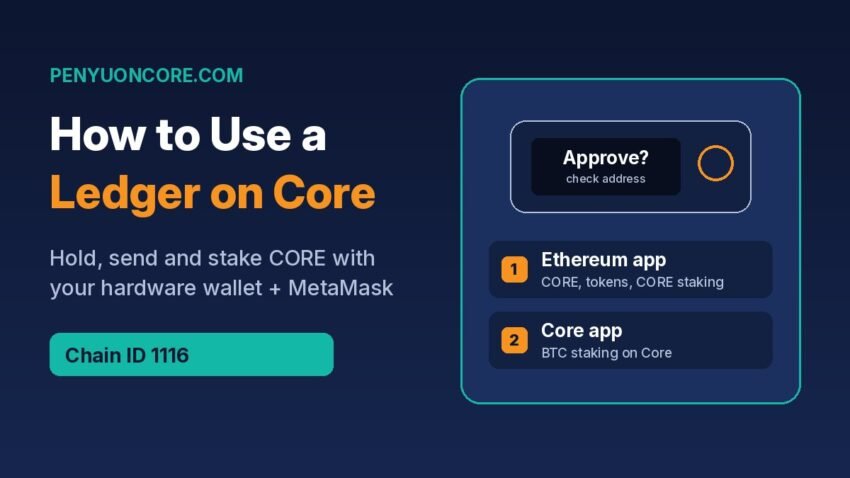
Quick answer: Ledger Wallet (formerly Ledger Live) does not offer a built-in account for the Core blockchain, so you use your Ledger through MetaMask. Install the Ethereum app on your Ledger, connect the device to MetaMask as a hardware wallet, and add Core Mainnet (chain ID 1116). Your Ledger’s Ethereum address then works on Core for holding, sending and staking CORE, and every transaction still has to be approved on the device. BTC staking is the exception: it uses Ledger’s separate Core app.
A hardware wallet keeps your private keys offline, which makes it one of the simplest ways to protect a long-term CORE position. The catch is that Core isn’t listed as its own account in Ledger Wallet, and there are two different Ledger apps involved depending on what you want to do. This guide walks through the setup step by step, using Core DAO’s and Ledger’s own documentation, and points out the mistakes that trip people up most often.
Before you start: what you need
- A supported Ledger device. Core DAO’s Ledger CORE staking guide lists the Ledger Nano S Plus, Nano X, Stax and Flex as supported, and tells you to run the latest firmware.
- Ledger Wallet on your computer, used to update the firmware and install apps on the device.
- The MetaMask browser extension on a desktop computer.
- A little CORE for gas. Every transaction on Core, staking included, is paid for in CORE. If your Ledger address is empty, buy or bridge a small amount to it first.
Don’t confuse Core with Coreum
If you search for “CORE” in Ledger Wallet’s account list, you’ll probably find Coreum (CORE). That’s a different blockchain that uses the Cosmos app, as explained on Ledger’s Coreum page, and Ledger notes it has merged with Sologenic to become TX. It is not the Core blockchain run by Core DAO. Sending Core-chain CORE to a Coreum address, or the other way round, is the kind of mistake that can lose you the funds. For the Core blockchain, you use an EVM (Ethereum-style) address that starts with 0x.
Which Ledger app do you need?
Core is EVM-compatible, so CORE itself and Core-network tokens are handled by Ledger’s Ethereum app. Native bitcoin you stake through Core stays on the Bitcoin network, so it uses a different app built for that job.
| What you want to do | Ledger app | Signing | Wallet used |
|---|---|---|---|
| Hold, send or receive CORE and Core tokens | Ethereum | Plain transfers show on screen; contract calls need blind signing | MetaMask (or another EVM wallet) |
| Stake CORE or use Core dApps | Ethereum | Blind signing must be enabled | MetaMask connected to the dApp |
| Stake, redeem or redelegate BTC on Core | Core (not Bitcoin) | Clear signing on the device | Ledger connected directly, or via Xverse |
How to use a Ledger on the Core network with MetaMask
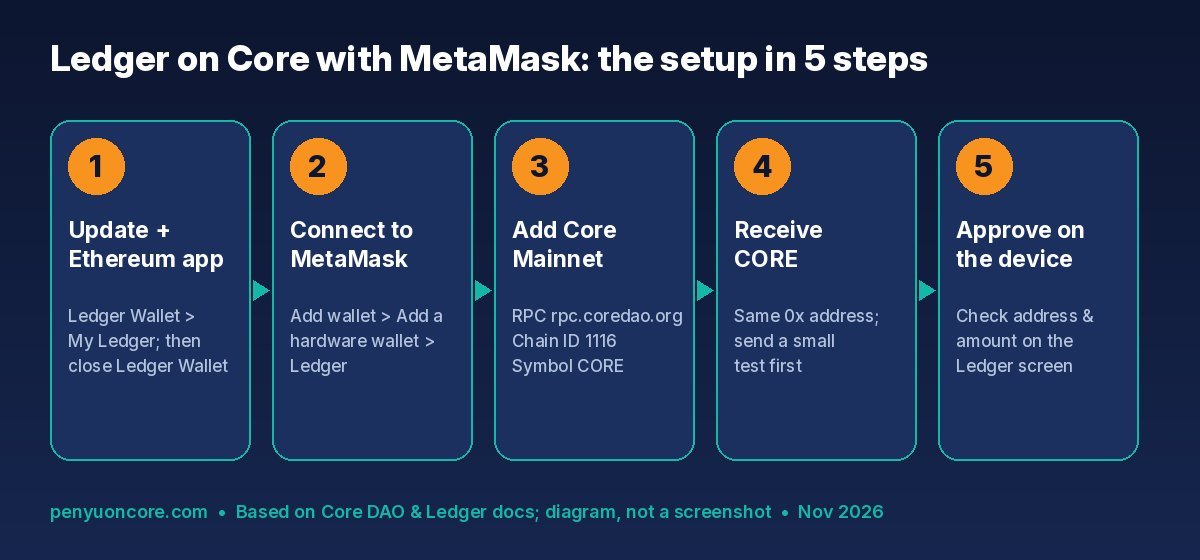
Step 1: Update the device and install the Ethereum app
- Open Ledger Wallet, connect and unlock your Ledger, and go to My Ledger.
- Install any firmware update it offers.
- In the app catalog, search for Ethereum and install it. Ledger’s Ethereum app guide covers this step.
- Close Ledger Wallet when you’re done. Ledger’s MetaMask guide warns that leaving it open can cause conflicts with MetaMask.
Step 2: Connect your Ledger to MetaMask
- Plug in the Ledger, unlock it and open the Ethereum app on the device.
- In MetaMask, open the account menu and choose Add wallet → Add a hardware wallet → Ledger.
- When the browser asks for permission to connect to a HID device, select your Ledger and click Connect.
- Tick the account you want (the first one in the list is your first Ethereum account in Ledger Wallet) and click Unlock.
The Ledger account now shows in MetaMask under a “Ledger” label. MetaMask is only the interface here. The private key never leaves the device, and nothing can be signed without a physical confirmation on the Ledger.
Step 3: Add Core Mainnet to MetaMask
If Core isn’t in your network list yet, add it with the details from Core DAO’s network configuration page: RPC URL https://rpc.coredao.org/, chain ID 1116, currency symbol CORE, and block explorer https://scan.coredao.org. Our step-by-step guide on adding Core to MetaMask covers manual entry and the one-click options.
Step 4: Receive CORE on your Ledger address
Switch MetaMask to Core, select the Ledger account and copy its 0x address. Because Core is EVM-compatible, this is the same address your Ledger uses on Ethereum. Send a small test amount first, then check it arrived on Core Scan before you move anything larger. When you withdraw from an exchange, make sure you pick the Core network, not Ethereum, BNB Chain or Coreum.
Step 5: Send CORE and approve on the device
Click Send in MetaMask as usual. After you confirm in MetaMask, the Ledger shows the transaction for review. Check the recipient address and the amount on the device screen, not just in the browser, then approve. If the device is locked or the Ethereum app isn’t open, MetaMask can’t get a signature and the transaction won’t go through.
Blind signing: when you need it and how to stay safe
Staking CORE, swapping on a DEX or approving a token are all smart contract interactions. If the Ethereum app can’t decode a contract call into readable details, it can only sign it “blind”. Ledger keeps that option off by default. Core DAO’s staking guide says you must turn blind signing on before staking CORE with a Ledger.
According to Ledger’s blind signing article:
- Touchscreen devices (Stax, Flex): open the Ethereum app, tap the settings (wrench) icon and switch on Blind signing.
- Nano S Plus / Nano X: open the Ethereum app, press right to reach Settings, press both buttons, then press both buttons again on Blind signing to enable it.
Ledger recommends turning it off again after use, and notes that it switches off automatically after a firmware or Ethereum app update. That’s why staking can suddenly “stop working” after an update. While it’s on, your Ledger is relying on the website and MetaMask to show you what you’re approving. So only connect to sites you’ve typed in yourself, like stake.coredao.org. Never approve unlimited token allowances to contracts you don’t recognize, and review old ones with our guide on how to revoke token approvals.
Staking with a Ledger: CORE vs BTC
Staking CORE
With the setup above done, open the Ethereum app on the device, go to the Core staking website, connect MetaMask using your Ledger account, choose an amount and validator, then confirm in MetaMask and on the Ledger. Core DAO’s guide states a minimum of 1 CORE, plus extra CORE for fees, and says rewards only start after a full staking round (00:00:00 to 23:59:59 UTC). For the staking choices themselves, see how to stake CORE.
Staking BTC
BTC staking with a Ledger works differently. Core DAO’s Ledger BTC staking guide sets these requirements:
- Install the Core app from the Ledger Wallet catalog and use it, not the Bitcoin app. Core DAO warns that the Bitcoin app doesn’t support redemption and could leave timelocked BTC inaccessible. The Core app uses clear signing, so amounts, addresses and fees show on the device screen.
- Stake only from the Ledger’s primary Bitcoin account, and only from a Native SegWit address.
- The minimum is 0.01 BTC.
- Record the exact BTC address you staked from. Core’s Ledger FAQ explains that redemption fails if the receiving address doesn’t match the original staking address.
Our BTC staking guide explains how timelocks and rewards work.
Common problems and fixes
- MetaMask can’t find the Ledger: unlock the device, open the Ethereum app, close Ledger Wallet, reconnect the cable and try again (or try a different browser).
- Staking or swaps are rejected on the device: blind signing is probably off, or it was reset by an update. Turn it back on.
- “Invalid data received (0x6a80)” when redeeming BTC: Core’s FAQ lists the wrong Ledger app (use Core), the wrong receiving address, a non-primary account, or browser cache issues as the known causes.
- Your MetaMask funds aren’t “on” the Ledger: Ledger notes you can’t secure an existing MetaMask account with a Ledger. You have to send the funds to the Ledger account in a normal transaction.
FAQ
Can I see CORE in Ledger Wallet?
Not as a native Core account. The “CORE” listed there is Coreum, a different chain. Manage Core-chain CORE through MetaMask or another EVM wallet connected to your Ledger.
Is my Ledger’s Core address the same as my Ethereum address?
Yes. Core is EVM-compatible, so the same 0x address works on both. The balances are separate, though, so make sure you’re sending on the right network.
Should I import my Ledger recovery phrase into MetaMask?
No. Ledger warns that doing so turns your Ledger into a hot wallet. Always connect it as a hardware wallet instead.
Do I need blind signing just to send CORE?
Ledger says blind signing is needed for most smart contract transactions. A plain CORE transfer isn’t a contract call, but staking, swaps and token approvals are.
Disclaimer: This article is for educational purposes only and is not financial advice. Crypto assets are volatile and can lose value. Steps and supported devices can change, so always check Core DAO’s and Ledger’s official documentation before moving funds.