
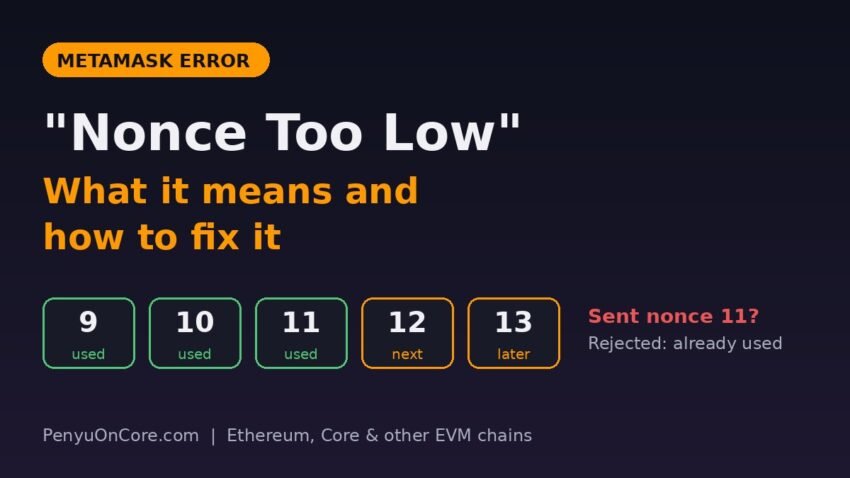
Quick answer: “Nonce too low” means MetaMask tried to send a transaction with a sequence number (nonce) that your address has already used on that network, so the node rejects it. Nothing was sent and no funds were lost. To fix it, first check a block explorer to see whether your earlier transaction already went through, turn off any custom nonce you typed in, and if MetaMask’s local count is still out of sync, delete its activity and nonce data for that network and try again.
This error shows up on Ethereum and on EVM chains such as the Core blockchain. It looks alarming, but it is almost always a bookkeeping mismatch between your wallet and the chain, not a security problem. Below is what the nonce actually is, why it goes out of sync, and the fixes in order from safest to most drastic.
What is a nonce in MetaMask?
MetaMask’s help center explains that “nonce” is short for “number used only once.” Every transaction you send from an account has one. Your first transaction uses 0, and each one after that goes up by 1 (MetaMask: How to customize a transaction nonce). The network uses it to process your transactions in the right order and to block double spends.
The nonce lives on the blockchain, not in your wallet. Ethereum.org describes it as a counter of the transactions an account has sent. Only one transaction with a given nonce can ever be executed for each account. MetaMask simply keeps its own local copy of that counter so it can fill in the next number for you.
What does “nonce too low” mean?
In go-ethereum (Geth), the client many EVM networks build on, nonce too low is the error returned “if the nonce of a transaction is lower than the one present in the local chain” (go-ethereum source). In plain English, the node is telling you that the number has already been used, so it expects a higher one.
Say your address has already confirmed transactions 0 through 11. The next valid nonce is 12. If MetaMask (or you) tries to send with nonce 11 or lower, the network refuses it. The transaction never enters the network, so you are not charged gas for it.
Common causes
| Cause | Typical sign | Best fix |
|---|---|---|
| Your first attempt actually succeeded | The explorer shows the transaction as confirmed | Don’t resend; just refresh the dApp |
| You typed a custom nonce that was already used | Custom nonce field is filled in manually | Clear the field and let MetaMask choose |
| Same address used in another wallet or device | Recent transactions you sent elsewhere | Refresh MetaMask; delete activity and nonce data if needed |
| MetaMask’s local record is out of sync | Error repeats on every send on one network | Delete activity and nonce data for that network |
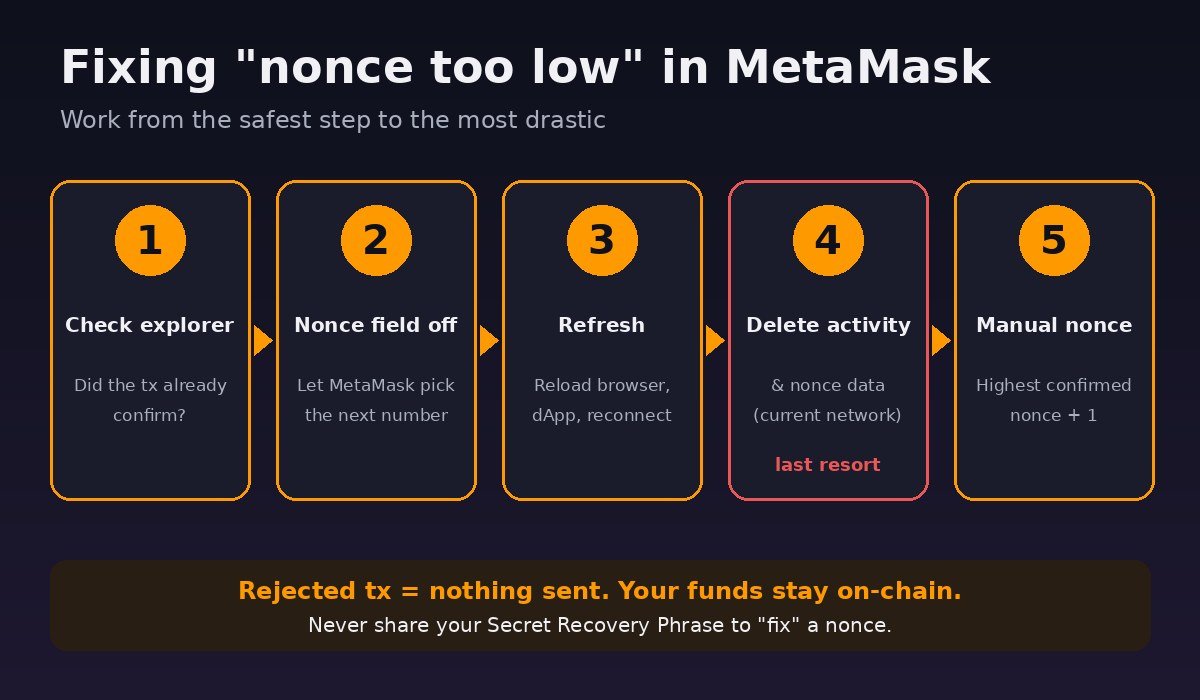
How to fix “nonce too low” in MetaMask (step by step)
Step 1: Check the block explorer first
Copy your wallet address and paste it into the explorer for the network you are using: Etherscan for Ethereum, or Core Scan for the Core blockchain. MetaMask’s own troubleshooting guide recommends this step, since entering your address shows all past and pending transactions (MetaMask error codes guide).
Look at the most recent outgoing transaction and its nonce. If the swap, transfer or approval you were retrying is already there as successful, you’re done. Sending it again would only repeat the action. If you’re new to explorers, our guide on how to use Core Scan shows where the nonce appears on a transaction page.
Step 2: Turn off any custom nonce you entered
If you switched on custom nonces earlier (for example, to cancel a stuck transaction), you may have reused an old number. Clear the field or turn the setting off so MetaMask fills in the next nonce itself. On mobile, the option is under Settings > Advanced. On the extension, the nonce field appears in the transaction review window when you toggle Show advanced details (MetaMask).
Step 3: Refresh MetaMask and the dApp
Close and reopen the browser, reload the dApp, and reconnect. This is a low-risk first attempt, but it isn’t guaranteed to resync the count. If you used the same address in another wallet app or on another device, make sure nothing is still being sent from there.
Step 4: Delete activity and nonce data (last resort)
If the error keeps coming back on the same network, MetaMask’s official reset clears its local record and nonce for that account. According to MetaMask’s guide:
- Extension: menu (top-right) > Settings > Developer tools > Delete activity and nonce data. Older guides call this “Clear activity tab data” under Advanced.
- Mobile: menu > Settings > Advanced > Reset account.
Before you do it, know what MetaMask says about this tool:
- It only affects the network you are currently on, so switch to the network that shows the error (for example Core) first.
- It’s irreversible, and MetaMask recommends downloading your state logs first in case Support needs them.
- You will not lose value in your accounts. Your history stays visible on the block explorer.
- MetaMask recommends using it only when strictly necessary, and its error guide says to back up your Secret Recovery Phrase, password and any imported private keys first.
Because this only wipes MetaMask’s local data, a transaction that was already broadcast is still on the network. Check the explorer again afterwards rather than assuming anything was cancelled.
Step 5: Set the correct nonce manually (advanced)
If you still need a specific number, enable custom nonce as described in Step 2. On the extension, if Smart Transactions is on and you are on Ethereum Mainnet, Base, Arbitrum or BNB Smart Chain, MetaMask says you must turn Smart Transactions off before you can edit the nonce, then turn it back on afterwards (MetaMask).
The right value is your highest confirmed nonce plus one. Since nonces start at 0, that equals the number of transactions your address has sent. If the explorer shows your last confirmed transaction used nonce 11, enter 12.
“Nonce too low” vs. a stuck pending transaction
These two problems are related but need different fixes. “Nonce too low” means the number is already used up by a confirmed transaction. A stuck pending transaction means a number is reserved by something that hasn’t confirmed yet, which blocks everything after it. For a stuck transaction, MetaMask’s guidance is to speed up or cancel it. Cancelling sends a 0-value transaction to yourself with the same nonce and a higher fee, starting with the oldest pending nonce first.
If the pending transaction is on Core, our walkthrough on fixing a pending or failed Core transaction in MetaMask covers this in detail. If the transaction did go through but failed on-chain, that’s a different error. See what “execution reverted” means.
Applying this on the Core blockchain
Core is EVM-compatible, so MetaMask handles nonces the same way there. Make sure MetaMask is pointed at Core mainnet (see how to add Core to MetaMask) before you clear any data, since the reset only applies to the selected network. Also keep a small CORE balance for gas. If you’re short, here’s how to get CORE for gas fees.
How to avoid nonce errors
- Avoid sending from the same address in two wallets or on two devices at the same time.
- Leave custom nonce turned off unless you’re deliberately replacing a pending transaction.
- Before you retry a “failed” action, check the explorer. It may already have succeeded.
- Never share your Secret Recovery Phrase with anyone offering to “fix” a nonce for you. No real fix needs it.
FAQ
Did I lose money because of “nonce too low”?
No. The network rejected the transaction before it was included, so nothing was sent from that attempt. Your balance is still on-chain.
Is deleting activity and nonce data safe?
MetaMask says you won’t lose value and that it only affects the current network. It’s irreversible and wipes the local activity list, so treat it as a last resort and back up your recovery phrase first.
Where is “Reset account” in MetaMask now?
On the extension it’s under Settings > Developer tools as “Delete activity and nonce data.” On mobile it’s still Settings > Advanced > Reset account.
What is “nonce too high”?
The opposite problem: the nonce skips ahead of the next number the chain expects. Using the next sequential nonce, or leaving the choice to MetaMask, fixes it.
Disclaimer: This article is for educational purposes only and isn’t financial advice. Wallet menus change often, so check MetaMask’s official help center before changing settings, and never share your recovery phrase. For broader protection tips, read our crypto security guide.